
List of running forms
The menu for the list of running forms can be accessed by the responsible users through “Menu> Budget> Execute Budget”. When accessing the environment a list of running forms will be displayed as shown below.


Approval: By clicking the “Approval” button the user will be redirected to the approval screen of the form.

Copy Link: By clicking the “Copy Link” button the URL (access link) of the form will be copied to the user’s clipboard.
Approval of running forms
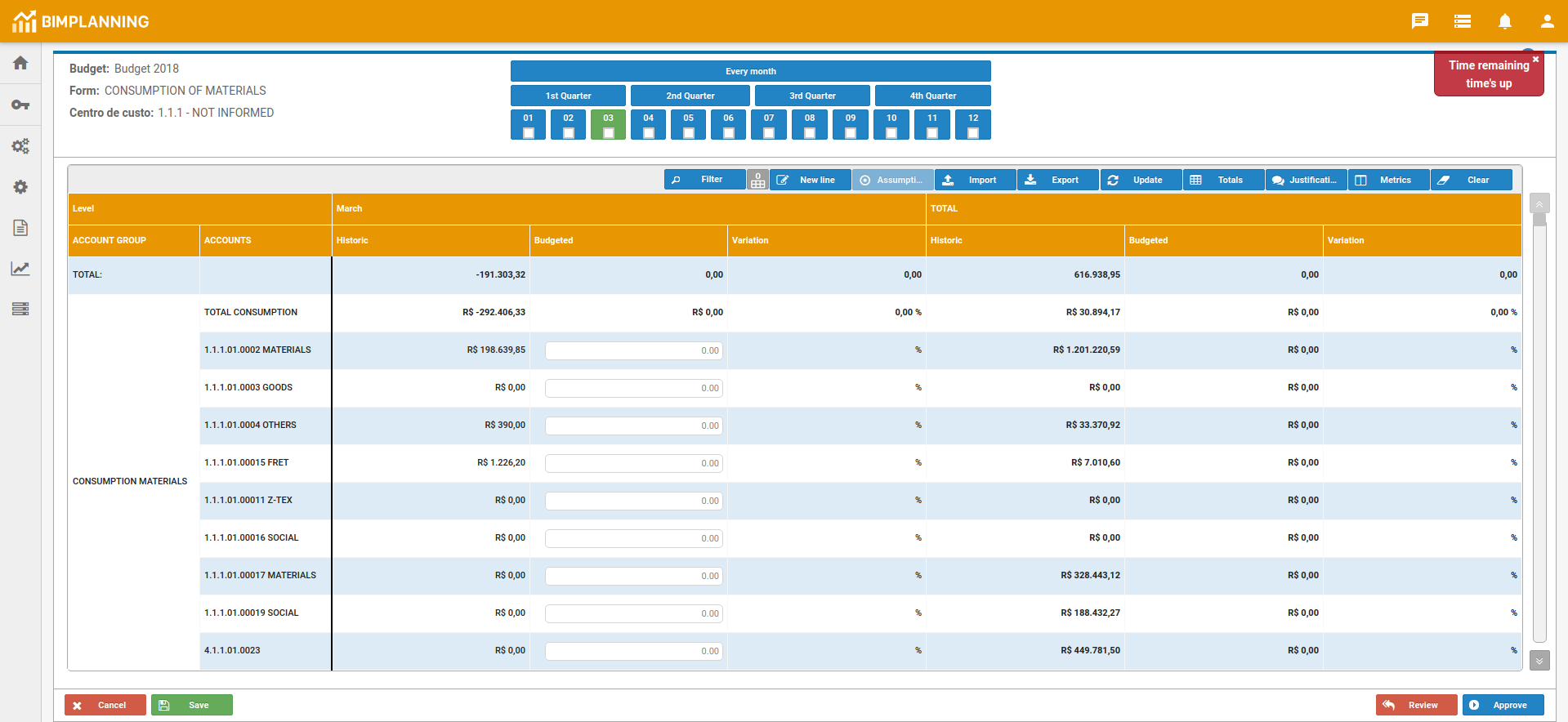
Simultaneous filling out of form may have some restrictions that are important to pay attention to.
Budget: Budget related to the execution of the form.
Form: Form
Form: Form for execution.
Matrix: Dimension referring to the running form.
Exhibition:
– Every month: Every month will be loaded on the screen, if the generated matrix is small it is better to carry all of it on the screen.
– Quarter: Only selected quarterly periods will be loaded on the screen, if the generated matrix is large it is better to display a few months instead of all.
– Monthly: Only one month will be loaded on the screen, if the generated matrix is giant the performance and usability of the browser will be compromised, being more appropriate to display for each month.
Display Options:

Display empty line: Show/hide empty lines (Available only on forms containing 1 level).

New line: Add a new line to the form.

Assumptions: Displays the values present in the assumptions assigned to the form.

Import: Import external data into the form, they can be imported by using “.CSV” files or “SQL” queries.

Export: Export data to files “.csv”.

Update: Update table values.

Totals: Update only the “Totals” fields of the table.

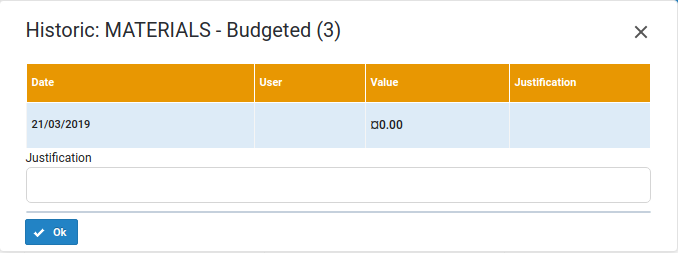
Justifications: Visualize all justifications entered by users to this form, either on values or revisions.

Metrics: Hide/display certain metrics on the screen.

Clear: Clear all values in the array, you will lose all the data entered.
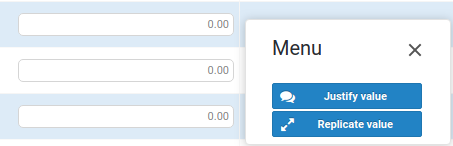
When you double click on a value field, a window with some operations will be displayed, as shown below:
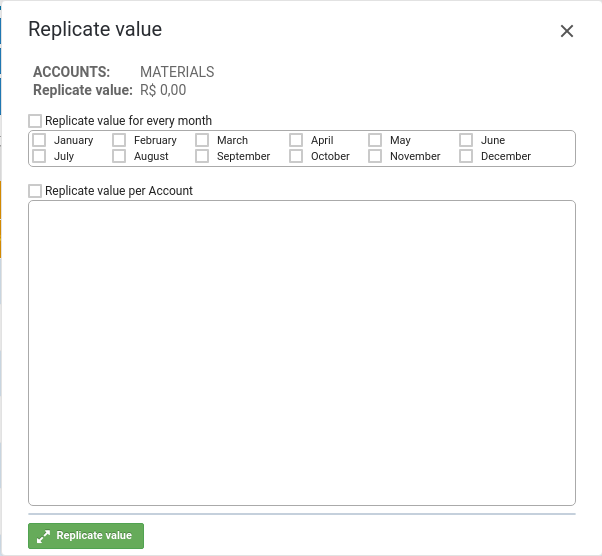
Replicate value: Button available to replicate the value of a field to others by month or level, clicking on it will open a window as below:
Finishing the execution of the form:

Save: Clicking on saving the data will be recorded in the system and you can go back another time to edit or finish inserting the data.

Review: By clicking review, you are requesting a review of the form.

Approve: By clicking on approve the data will be recorded in the system and the form will be approved, not allowing later changes.