
Import CSV
1st Step: Data Source
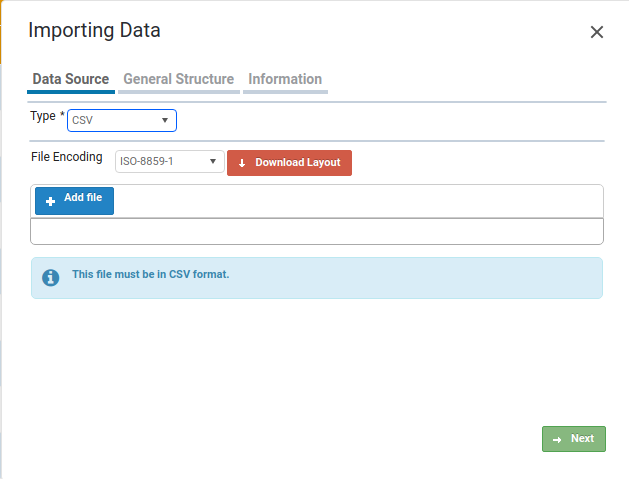
The format of the file to be imported should be of type “.csv” and should have as “;” separator.
File Encoding: Select the encoding of the file to be imported.
Download Layout: You can download the current layout and edit in excel, all values already registered will be kept in the file.
Add File: Select the file you want to import.
File Encoding: Select the encoding of the file to be imported.
Download Layout: You can download the current layout and edit in excel, all values already registered will be kept in the file.
Add File: Select the file you want to import.
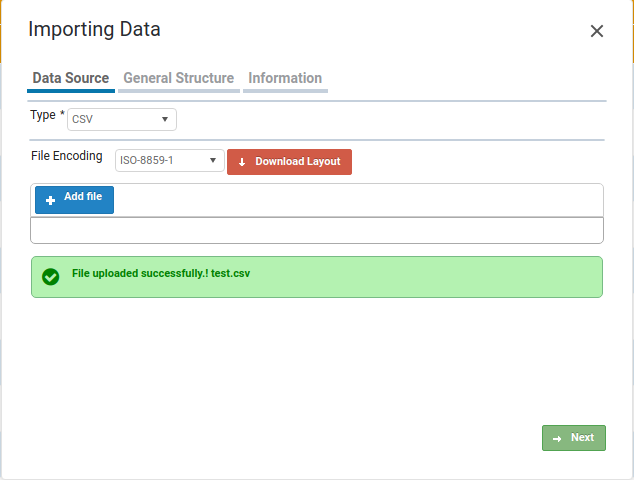
After adding the file, click “Next” to continue with the import.
Step 2: General Structure
Here you need to link the columns and rows of the table of the “csv” file that you are importing with the tables and rows of the system. If you downloaded the layout the rows and columns of the “csv” will be the same as those of the system, otherwise you must carefully select the corresponding fields.
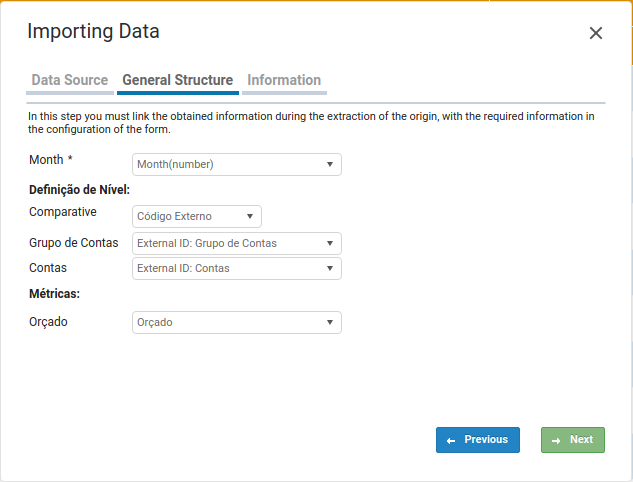
When you’re done, click “Next” to finish importing.
Step 3: Information
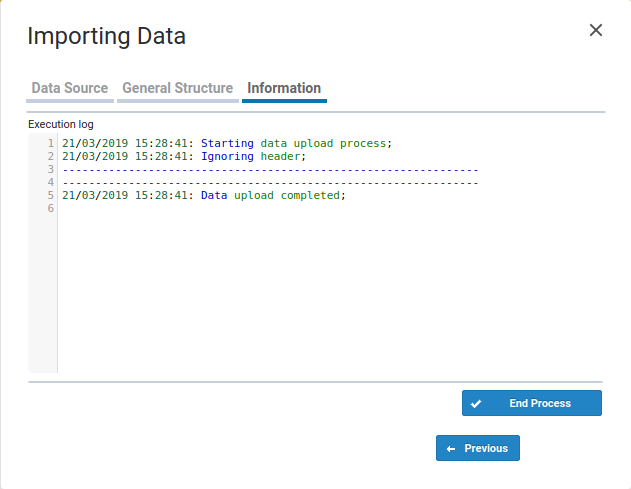
If an error occurs and you can not import the file it will appear on this screen indicating where it happened, otherwise a message as shown below will inform you that the file was successfully imported.
Import SQL
1st Step: Data Source
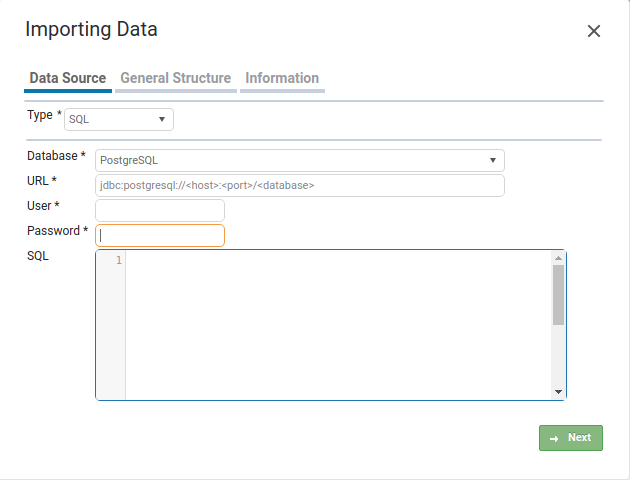
Database: database where the data will be collected.
URL: address, port, and database name where the data will be collected.
User: user to collect data.
Password: User’s password.
SQL: query in sql to collect the data from the database.
To proceed, click “Next”. The following steps are the same as described in “Import CSV “.